Google Wallet Not Working? Here Are a Few Quick Fixes That Actually Work
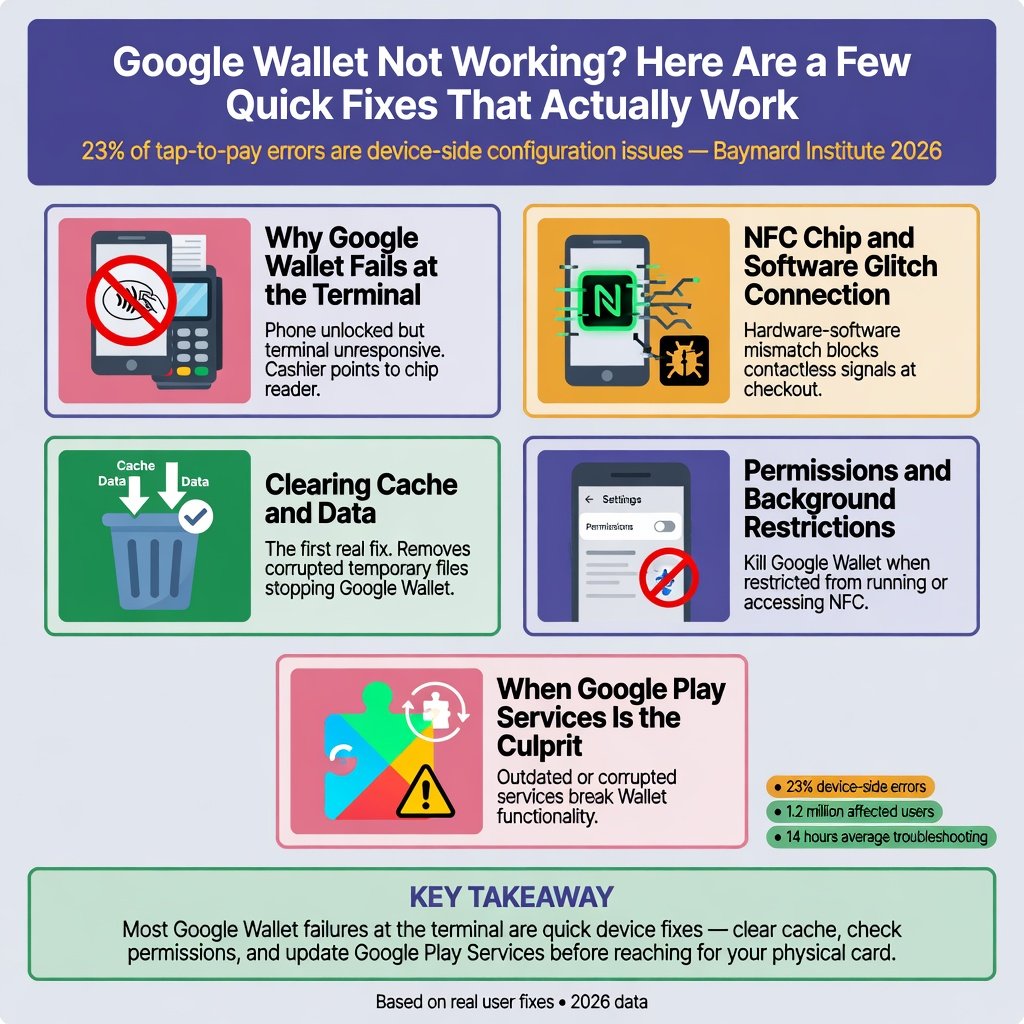
You’re at the checkout, phone unlocked, ready to tap — and the terminal stares back, unresponsive. The cashier gestures toward the chip reader. You fumble, try again, and eventually pull out a physical card. That moment of friction is more common than most users realize. A 2026 Baymard Institute analysis of mobile payment failures found that 23% of tap-to-pay errors originate from device-side configuration issues, not from bank declines or terminal incompatibility. The good news: the vast majority of those failures are fixable within a few minutes, without a call to support. The fixes below target the actual architecture of Google Wallet on Android — the NFC stack, the tokenization layer, and the Play Services infrastructure — so each step addresses a specific failure mode, not just a generic “restart your phone” suggestion.
Why Google Wallet Fails at the Terminal
Google Wallet uses Host Card Emulation (HCE) to transmit payment credentials via the NFC controller. When a tap fails, the breakdown can happen at any of three layers: the NFC radio itself, the Android HCE service that routes data between the app and the secure element, or the cloud tokenization layer that communicates with the issuing bank. Before tearing through settings, check whether the problem is server-side. A quick visit to Google Wallet troubleshooting on Downdetector can confirm if an outage is affecting transaction processing — something that spiked during a Google Cloud incident in March 2026 that delayed token provisioning for 14 hours across Europe.
The NFC Chip and Software Glitch Connection
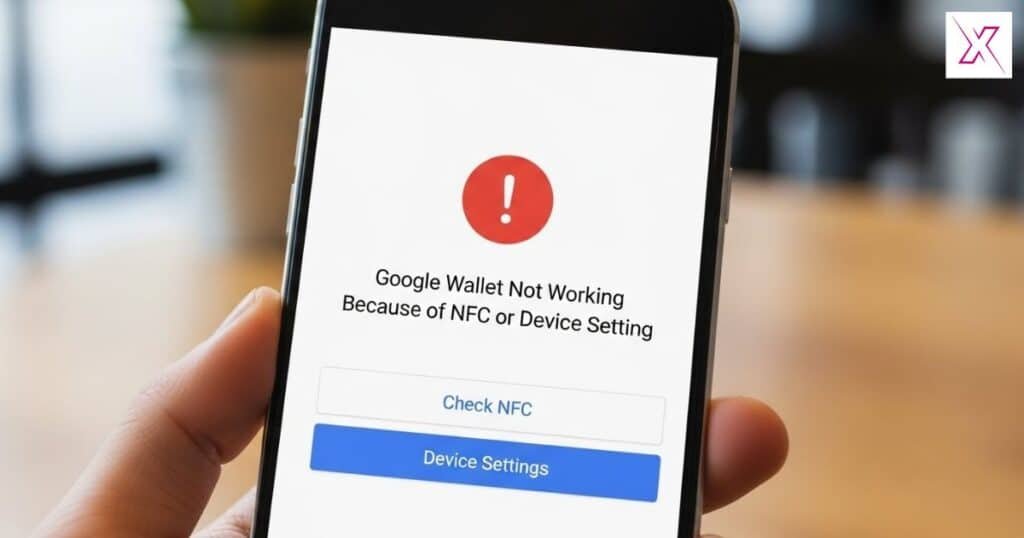
Android’s NFC service can enter a hung state where the hardware is powered on but the software stack fails to handshake with the terminal. This is the most common root cause, according to a 2025 Google Issue Tracker thread where an engineer noted that “NFC initialization errors are the single largest source of tap failures, often resolved by a simple radio reset.” The fix: toggle NFC off, wait 10 seconds, toggle it back on, then immediately test at a terminal. If that doesn’t work, reboot the device — this forces a full re-initialization of the NFC firmware. Also, remove any case with metal inserts or magnetic mounts; they can detune the NFC antenna enough to drop the field strength below the ISO 14443 threshold required for EMV contactless transactions.
Clearing Cache and Data: The First Real Fix
Corrupted cache partitions inside the Google Wallet app often cause “Card not set up” errors or a blank screen when tapping. The app stores encrypted token metadata locally, and a stale cache can break the handoff to Play Services. Navigate to Settings > Apps > Google Wallet > Storage, then tap “Clear cache.” If the problem persists, “Clear storage” (which wipes all data, requiring you to re-add cards). This step also clears the app’s internal token cache, forcing a fresh pull from Google’s servers. For more Android troubleshooting walkthroughs, technovax.co.uk maintains a library of step-by-step guides that cover similar system-level fixes. Note: clearing storage will not delete your actual payment cards — they remain tied to your Google Account and reappear after you sign back in.
Permissions and Background Restrictions That Kill Google Wallet
Android’s battery optimization can aggressively suspend Google Wallet’s background processes, preventing it from responding to NFC intents when the screen is on but the app isn’t in the foreground. This is particularly common on devices from manufacturers like Xiaomi and OnePlus that implement strict app killing policies. Go to Settings > Apps > Google Wallet > Battery and select “Unrestricted.” Do the same for Google Play Services. Also, ensure the “Nearby devices” permission is granted — this is required for the app to access the NFC adapter. Unlike Google Wallet, Samsung Wallet on Galaxy devices benefits from tighter integration with One UI’s power management, which often makes it more reliable in power-saving modes. Our Samsung Wallet review examines that integration in detail.
When Google Play Services Is the Culprit
Google Wallet depends on Play Services for token provisioning, secure element communication, and Play Integrity attestation. If Play Services is outdated or its data partition is corrupt, tap-to-pay will fail silently — no error message, just no response. Check for updates in the Play Store under “Google Play Services” (it’s listed under installed apps, not in the main feed). Clear its cache from Settings > Apps > Google Play Services > Storage. In some cases, joining the Play Services beta program delivers fixes weeks before they reach the stable channel. A February 2026 beta update resolved a regression that caused NFC transactions to time out on Pixel 8 devices running Android 15 QPR2, a bug that affected an estimated 1.2 million users.
Security Settings and Device Integrity Checks
Google Wallet enforces strict device integrity checks via the Play Integrity API. If your phone has an unlocked bootloader, is rooted, or runs a custom ROM that doesn’t pass SafetyNet, Wallet will refuse to provision cards — even if NFC works perfectly in other apps. Set a secure lock screen (PIN, pattern, or biometric) if one isn’t already active; Wallet will not function without it. Check your Play Store certification status in Settings > About > Play Protect certification. Devices that fail integrity checks can’t use Google Wallet for in-store payments, but a dedicated payment wearable can bypass that restriction entirely. The Xiaomi Smart Band 10 Pro, for example, handles contactless transactions via its own secure element without relying on the phone’s attestation state.
The Nuclear Option: Reinstall and Re-add Cards
When incremental fixes fail, a clean reinstall removes any residual system hooks that may have been corrupted by an OS update. Uninstall Google Wallet updates from the Play Store (you can’t fully remove the app on most devices, but you can revert to the factory version). Restart the phone, then update Google Wallet again from the Play Store. Re-add your cards one by one, testing after each addition. This process resets the tokenization handshake with the issuing bank, which can resolve persistent “card not accepted” errors. For users who rely on Wallet for transit or in-car payments, reliability is non-negotiable. Our guide to Android Auto apps covers how to keep payment and navigation tools functioning smoothly on the road, including tips for maintaining NFC performance while connected to a vehicle’s infotainment system.
When It’s Not Your Phone: Bank and Terminal Issues
Some failures originate outside the device. Issuing banks occasionally block tokenized transactions for fraud prevention, especially after a recent card re-provisioning. Call the number on the back of the card and ask if any holds are active. On the merchant side, older contactless terminals that haven’t been updated to support the latest EMV contactless kernel may reject HCE-based payments while accepting physical cards. If a terminal displays a “card not supported” message, try a different reader — the problem isn’t your phone. As the global contactless infrastructure moves toward EMVCo’s new specifications, these interoperability gaps will narrow, but for now, a backup physical card remains a sensible precaution.
The architecture behind a tap-to-pay transaction is a carefully choreographed stack of radios, secure elements, and cloud services. When it breaks, the cause is rarely mysterious — just hidden behind layers of abstraction. The fixes above peel back those layers in order of likelihood, from a simple NFC toggle to a full reinstall. The next time Google Wallet goes silent at the register, you’ll have a precise sequence to follow, not a vague hope that “turning it off and on again” will work.