Sonic Studio Virtual Mixer: Complete Setup, Optimisation and Fix Guide
Sound can make or break your experience. You might have great graphics and fast internet, yet messy audio ruins everything. That is exactly where sonic studio virtual mixer becomes important. It gives you control over every sound running on your PC.
Many gamers and streamers in the UK and US use sonic studio virtual mixer to separate game audio, voice chat, and music. Instead of fighting with Windows sliders, you manage everything in one clean interface. It feels organised. It feels professional.
If you use an ASUS motherboard, especially with Sonic Studio installed, this tool works even better. In this guide, you will learn how sonic studio virtual mixer works, how to set it up, how to fix common issues, and how to optimise it for gaming and streaming.
What Is Sonic Studio Virtual Mixer and How Does It Work?
At its core, sonic studio virtual mixer is a digital sound control system. It allows you to split and route different audio sources separately. Instead of mixing everything into one output, it creates virtual channels inside your PC.
Imagine you are in a recording studio. The engineer controls each instrument individually. That is exactly how this mixer works. Your game, Discord, browser, and music all get separate control lanes.
The system processes audio in real time. There is no delay. Everything feels instant and responsive.
Learn More About: HCL Tech Careers Guide: Roles, Pay & Hiring Tips
How Audio Routing Works Inside the Mixer
When you open sonic studio virtual mixer, you see multiple virtual outputs. Each application can be assigned to one of these outputs. This process is called routing.
For example, you can send game sound directly to your headset. At the same time, you can route voice chat differently. That means you control who hears what. This level of separation makes a huge difference during competitive matches.
Why It Feels Different from Normal Windows Audio
Standard Windows audio mixes everything together. You adjust one master volume. That is limiting.
With sonic studio virtual mixer, you adjust each app individually. If Spotify feels loud, lower it alone. If Discord needs boosting, increase only that. You are no longer trapped in one shared volume setting.
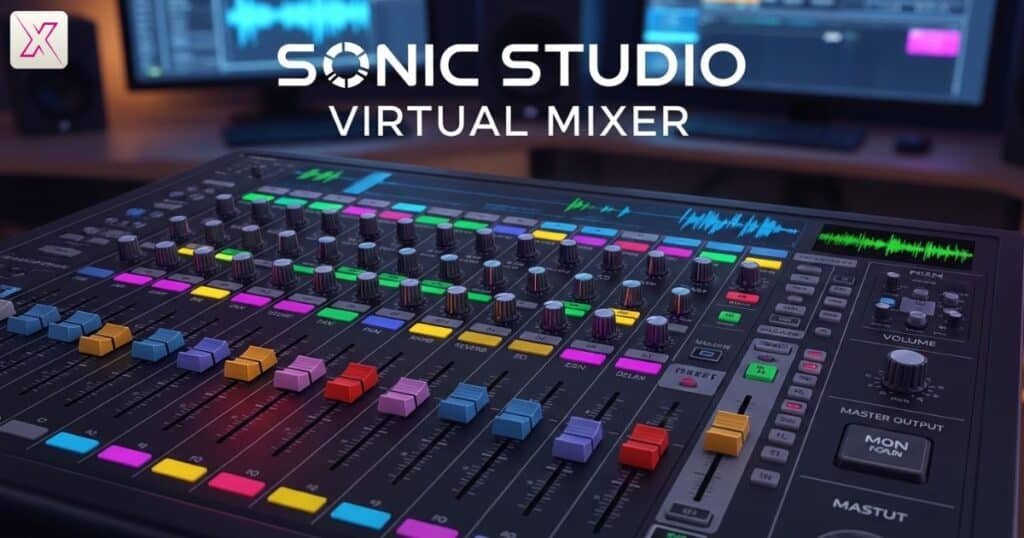
Key Features of Sonic Studio Virtual Mixer Explained
The power of sonic studio virtual mixer comes from its practical features. These tools are not flashy. They are useful.
It gives you fine control over audio balance, routing, and enhancement. Everything happens in one clean dashboard.
Multi-Source Audio Control
One of the strongest features is the ability to handle multiple sound sources separately. Game audio, system sounds, voice chat, and streaming software all run independently.
This prevents chaos. You avoid sudden spikes in sound. You maintain consistent levels throughout your session.
App-Specific Volume and Sound Enhancements
Another smart feature is individual application control. You can mute one program without affecting others.
You also get enhancement tools. These improve clarity and reduce background noise. Small adjustments here create noticeable improvements in overall sound quality.
How to Set Up Sonic Studio Virtual Mixer on Your PC
Setting up sonic studio virtual mixer is simple if you follow the correct steps. Rushing often causes issues later.
Start by installing the correct version linked to your ASUS motherboard. After installation, restart your PC. This ensures drivers load properly.
Installing the Correct Drivers
Driver installation is critical. Without proper drivers, the mixer may appear installed but fail to route audio correctly.
Always download drivers from your official motherboard support page. Avoid unofficial sources. Once installed, confirm the mixer appears in your Windows sound settings.
Activating the Mixer as Default Device
After installation, go into Windows sound settings. Set the virtual mixer as your default playback device.
This small step ensures every application routes through the system properly. If you skip it, routing may not work as expected.
Sonic Studio Virtual Mixer System Requirements and Compatibility
Compatibility matters more than people think. Not every PC supports this feature automatically.
Most users running sonic studio virtual mixer have ASUS motherboards. The tool integrates directly with compatible hardware.
ASUS Hardware Integration
The mixer works best with supported ASUS boards. The integration allows smoother performance and lower system load.
If your motherboard does not support it, installation may fail or behave unpredictably.
Windows Version and Updates
Windows 10 and Windows 11 support the mixer, provided updates are current. Outdated builds often cause routing errors.
Keeping your system updated improves stability significantly. Drivers and Windows updates must match.
Step-by-Step Guide to Configuring Sonic Studio Virtual Mixer
Installation alone is not enough. Proper configuration unlocks its true potential.
Open the interface and examine the virtual outputs. Assign applications carefully.
Assigning Applications to Channels
Place game audio in one channel. Assign Discord or communication apps to another. Streaming software should have a separate route.
This separation keeps everything organised and easy to manage during live sessions.
Saving Presets for Quick Switching
Once your configuration feels right, save it as a preset. This saves time later.
If you switch between gaming and streaming, presets allow instant changes without rebuilding everything from scratch.
Best Audio Settings in Sonic Studio Virtual Mixer for Gaming
Gaming requires precise sound positioning. Clarity can affect performance.
Boosting everything to maximum does not help. Balanced audio improves awareness.
Optimising Game Sound Clarity
Keep in-game effects slightly higher than background music. This makes footsteps and directional cues easier to detect.
Avoid heavy bass boosts. They may sound powerful but reduce positional accuracy.
Balancing Voice Communication
Team communication must stay clear without overpowering game sound. Adjust mic sensitivity carefully.
Test your setup in a live match. Ask teammates if your voice sounds balanced. Small tweaks often create the best results.
How Content Creators Can Use Sonic Studio Virtual Mixer
For streamers, clean audio matters even more than visuals.
Viewers forgive minor frame drops. They rarely forgive bad sound.
Separating Stream and Personal Audio
With sonic studio virtual mixer, you can hear background music privately while excluding it from your stream. This prevents copyright issues.
You can also mute Discord from broadcast while still hearing teammates yourself.
Achieving Professional Sound Without Extra Hardware
Many beginners think they need physical mixers. In reality, proper configuration inside this software handles most needs.
It simplifies your desk setup. It reduces equipment costs. It keeps everything digital and manageable.
Troubleshooting Common Sonic Studio Virtual Mixer Issues
Even reliable tools experience issues occasionally.
If sound fails to route correctly, stay calm. Most problems are simple.
Device Not Detecting Audio
Sometimes Windows resets default playback settings after updates. Check your sound panel first.
Reassign the mixer as default. Restart your PC. This solves many cases instantly.
Driver Conflicts and Reinstallation
If routing still fails, reinstall the correct motherboard driver.
Avoid unofficial patches. Clean reinstallation from the official support page usually resolves conflicts.
Tips to Improve Sound Quality with Sonic Studio Virtual Mixer
Good audio depends on smart adjustments.
You do not need extreme settings. Subtle tuning works better.
Fine-Tuning Equaliser Settings
Use mild equaliser adjustments. Boost clarity rather than volume.
Excessive bass creates distortion. Balanced frequencies sound cleaner and more natural.
Reducing Background Noise
Enable built-in noise suppression features. This reduces keyboard clicks and fan hum.
Clear voice input makes streams and calls more professional.
Comparing Sonic Studio Virtual Mixer with Other Audio Tools
Many users wonder whether third-party mixers perform better.
In most ASUS systems, the built-in solution performs efficiently.
Built-In Versus Third-Party Options
External audio software often requires extra configuration. Some consume more system resources.
The integrated nature of sonic studio virtual mixer gives it stability advantages on supported hardware.
Feature Comparison Table
Below is a simple comparison for clarity:
| Feature | Sonic Studio Virtual Mixer | Third-Party Mixers |
| Hardware Integration | Direct ASUS Support | Independent |
| Cost | Included with motherboard | Often Paid |
| System Load | Low | Medium to High |
| Setup Difficulty | Moderate | Sometimes Complex |
| Gaming Optimisation | Strong | Varies |
For many users, especially gamers, the built-in solution provides balanced performance and simplicity.
Benefits of Using Sonic Studio Virtual Mixer for Streaming
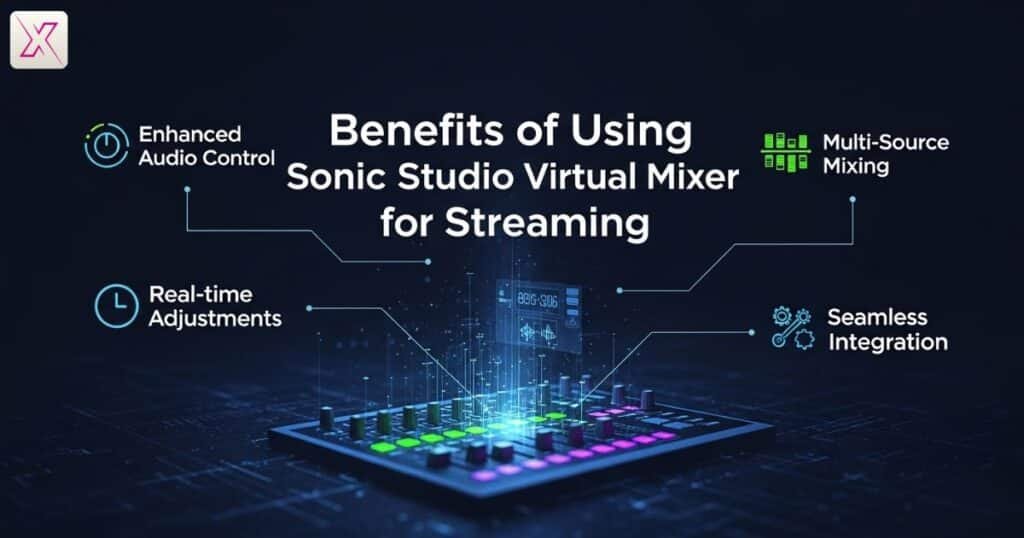
Streaming demands stability. Sudden audio spikes damage viewer trust.
When properly configured, sonic studio virtual mixer provides consistent output.
Clean and Balanced Broadcast Audio
You control voice, game, and music independently. This creates smooth transitions and avoids awkward volume jumps.
Your stream feels controlled and polished.
Real-Time Adjustments During Live Sessions
Live streaming leaves no room for panic. Quick audio changes are essential.
With organised routing, you make instant adjustments without interrupting your broadcast.
Conclusion
Audio control should feel simple. When everything blends together, frustration builds quickly. That is why sonic studio virtual mixer matters. It separates sounds, balances voice, and keeps your setup organised.
With proper installation and smart configuration, sonic studio virtual mixer transforms everyday gaming and streaming. You gain control over every channel. You avoid messy volume clashes. You create a smoother experience for yourself and your audience.
If you use compatible ASUS hardware, sonic studio virtual mixer becomes even more powerful. Take time to configure it properly. Test your settings. Save presets. Once optimised, sonic studio virtual mixer delivers stable, professional-level sound without expensive hardware or complicated tools.
Frequently Asked Question
What does this tool actually do?
It lets you control game, voice, and music separately using sonic studio virtual mixer inside your PC.
Do I need an ASUS motherboard?
Yes, most systems require ASUS hardware because sonic studio virtual mixer integrates directly with supported ASUS audio drivers.
Why is my audio not routing properly?
If routing fails, sonic studio virtual mixer may not be set as the default playback device in Windows settings.
Can I use it for streaming?
Absolutely. Sonic studio virtual mixer helps separate stream audio and personal audio for cleaner broadcasts.
Does it work on Windows 11?
Yes, sonic studio virtual mixer works on Windows 11 if your drivers and system updates are installed correctly.
How do I fix driver problems?
Reinstall the correct motherboard driver. Most sonic studio virtual mixer issues come from outdated or corrupted drivers.
Is it better than third-party mixers?
For ASUS users, sonic studio virtual mixer often feels more stable because it integrates directly with system hardware.