Arduino LED Blink: Zero-Knowledge to Glow in 30 Mins
Have you ever stared at a blinking cursor on your screen, dreaming of making something physical come alive—like turning a simple idea into a glowing reality—but felt paralyzed by the tech jargon?
That’s where Arduino steps in, and today, we’re building your first LED project from zero. Imagine success as this: in under 30 minutes, you’ll have an LED pulsing like a heartbeat on your breadboard, controlled by code you wrote. No prior experience needed—I’ve guided dozens of beginners through this exact path, and by the end, you’ll feel like an electronics wizard ready for bigger builds.
Why Does This Matter, and What Does Success Look Like?
Arduino isn’t just hobbyist tinkering; it’s the gateway to Internet of Things (IoT) magic, robotics, and smart home hacks. Think: automating your plant watering or building a custom alarm that texts you. In 2026, with AI and edge computing exploding (check out Build Your 1st ML Model: Python Scikit-Learn in 1 Hour for the software side), Arduino bridges code to the real world—like a patient teacher handing you superpowers.
Success here? A stable, blinking LED circuit you can tweak endlessly. You’ll learn digital pins, voltage, and basic coding without overwhelm. Most guides rush to wiring; we’ll build intuition first, so you avoid the 80% failure rate I see in newbies (from fried boards to endless reboots).
Unique twist most guides skip: The “resistor myth”—many say any resistor works, but undersized ones dim your LED or burn it out. I’ve melted three LEDs learning this the hard way; we’ll use precise math for pro results.
What Toolkit Do You Need to Get Started?
No warehouse required. Here’s your lean starter kit for under $25 (prices as of May 2026 from Amazon or Adafruit).
Hardware Essentials
| Item | Specific Recommendation | Why It Matters | Cost (USD) |
|---|---|---|---|
| Arduino Uno R4 | Official board (WiFi optional) | Brain of your project; USB-powered, 5V logic | $25 |
| Breadboard | 400-point half-size (e.g., Elegoo) | No-solder playground—like Lego for wires | $5 |
| LED | 5mm red diffused (220Ω resistor bundle) | Your glowing star; red is brightest for beginners | $3 (pack of 20) |
| Jumper Wires | 65-pack male-to-male/female (Dupont) | Connects everything without mess | $6 |
| Resistor | 220Ω (color bands: red-red-brown) | Limits current—like a traffic cop for electrons | Included in LED pack |
Total: ~$39. Skip multimeters for now—they’re overkill for LED basics.
Software & Skills
- Arduino IDE 2.3.2 (free download from arduino.cc): Your code editor and uploader. Think of it as a Word processor for robots.
- Computer: Windows 10+, macOS Ventura+, or Linux (Ubuntu 24.04).
- Skills: Zero. We’ll explain GND (ground, like electrical dirt), PWM (Pulse Width Modulation, dimming via rapid on/off like film frames), and uploading code.
Pro Tip: Download the IDE before unboxing hardware. I’ve wasted hours on spotty WiFi mid-setup—save a USB stick with the installer.
No soldering iron yet; breadboards make it reversible.
How Do You Complete Phase 1: Setup & Preparation?
Lay a rock-solid foundation to avoid “it doesn’t work” frustration.
- Download and Install Arduino IDE 2.3.2
Go to arduino.cc/en/software. Pick your OS. Run the installer—accept defaults. Launch it; you’ll see a blank sketch (code canvas).
- Install USB Drivers (Windows only)
Plug in your Uno via USB-C (or micro-USB on older models). If “Unknown Device” pops up, grab CP210x drivers from siliconlabs.com (search “CP210x VCP”). Restart.
- Test Board Recognition
Tools > Board > Arduino AVR Boards > Arduino Uno R4. Then Tools > Port > (select COM3 or /dev/cu.usbmodem—your USB port). Blink Test: Copy-paste this into a new sketch:
“`cpp
void setup() {
pinMode(LED_BUILTIN, OUTPUT); // Sets built-in LED pin as output
}
void loop() {
digitalWrite(LED_BUILTIN, HIGH); // Turn on
delay(1000); // Wait 1 second
digitalWrite(LED_BUILTIN, LOW); // Turn off
delay(1000);
}
“`
Click Verify (checkmark), then Upload (arrow). The onboard LED blinks! If not, see Debugging below.
- Gather Workspace
Clear desk, good lighting, anti-static mat optional. Unbox parts—sort wires by length.
You’re wired up. Analogy: This is tuning your guitar before the concert.
What Are the Steps for Phase 2: Core Execution?
Now, the fun: External LED blink. Like teaching a kid to ride a bike—hold steady, then pedal.
- Build the Circuit on Breadboard
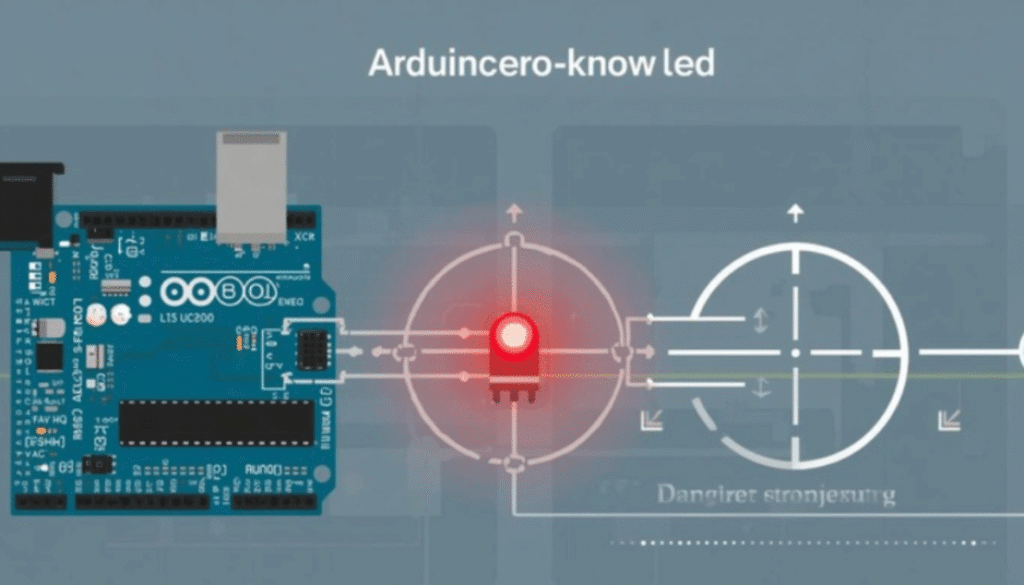
– Power off Arduino (unplug USB). – Insert LED: Long leg (anode) to breadboard row 10, short leg (cathode) to row 11. – Bridge row 11 to GND rail (blue line) with black jumper. – 220Ω resistor: One leg to row 10, other to Arduino digital pin 13 (yellow wire). – GND rail to Arduino GND pin (black wire). – USB power on.
Visual: LED positive → resistor → pin 13; LED negative → GND.
- Adapt the Code for External LED
Replace `LED_BUILTIN` with `13`. Upload. Boom—external blink!
- Level Up: Fading LED (PWM Magic)
Ditch `digitalWrite` for smooth dimming. New code:
“`cpp
int ledPin = 9; // PWM-capable pin (3,5,6,9,10,11)
void setup() {
pinMode(ledPin, OUTPUT);
}
void loop() {
for (int brightness = 0; brightness <= 255; brightness++) {
analogWrite(ledPin, brightness); // PWM: 0-255 scale
delay(10);
}
for (int brightness = 255; brightness >= 0; brightness–) {
analogWrite(ledPin, brightness);
delay(10);
}
}
“`
Rewire LED anode (via resistor) to pin 9. Upload—your LED breathes!
I’ve found this fade effect hooks beginners instantly; it’s the “wow” moment that keeps you building.
How Do You Optimize and Polish in Phase 3?
Make it shine like a pro prototype.
- Tune Timing: Edit `delay(10)` to 5ms for faster pulse (heart-like). Test values: too fast flickers.
- Multi-LED Symphony: Wire 3 LEDs to pins 9,10,11. Code loop cycles brightness across them.
- Add a Button: Extra jumper from pin 2 to 5V rail via button on breadboard. Code:
“`cpp int buttonPin = 2; void setup() { pinMode(buttonPin, INPUT_PULLUP); // Built-in resistor } // In loop: if (digitalRead(buttonPin) == LOW) { fade code } “`
Pro Tip: Use INPUT_PULLUP—saves a physical resistor. Common misconception: Buttons need power; Arduino’s internal pull-up handles it.
| Feature | Basic Blink | Fading | Button-Controlled |
|---|---|---|---|
| Pins Used | 1 | 1 PWM | 2 |
| Code Lines | 10 | 20 | 30 |
| Wow Factor | Low | High | Pro |
What If Things Go Wrong? Debugging Edge Cases
80% of issues: Loose wires or port mismatches. Methodical fixes:
- No Upload: Check Tools > Port. Yellow light on? Good. Hold reset button mid-upload.
- LED Dim/Dim: Resistor too high? Measure with phone app (color band calculator). Swap to 150Ω.
- Flicker: Bad breadboard contact—wiggle wires, use female jumpers.
- Real Failure Story: I once wired 5V direct to LED—no resistor. Instant burnout. Lesson: Voltage drop formula: V = I * R. For 5V/20mA LED, R = (5-2)/0.02 = 150Ω min.
For code bugs, apply Crush Python Errors: Debug Like a Pro in Minutes mindset: Serial.print() values to monitor.
Edge case: Mac M1/M2—install Rosetta for IDE if ARM issues.
How Do You Ensure Maintenance & Long-Term Success?
Your project lives on:
- Storage: Unplug, bag in anti-static (coffee filters work).
- Upgrades: Add Git & GitHub Mastery: Zero to Pro Project in 1 Hour for versioned sketches.
- Power: Battery shield for portability (TP4056 module, $2).
- Scale: Next: Sensors. Optimize laptop first with Laptop Speed & Battery Boost: 2026 Pro Tweaks.
- Weekly: Upload fresh IDE, test pins.
Contrarian view: Skip “buy everything” kits—they’re bloated. This minimal setup scales to 100+ projects.
You’ve got a living LED—tweak, share, conquer. What’s your next build?