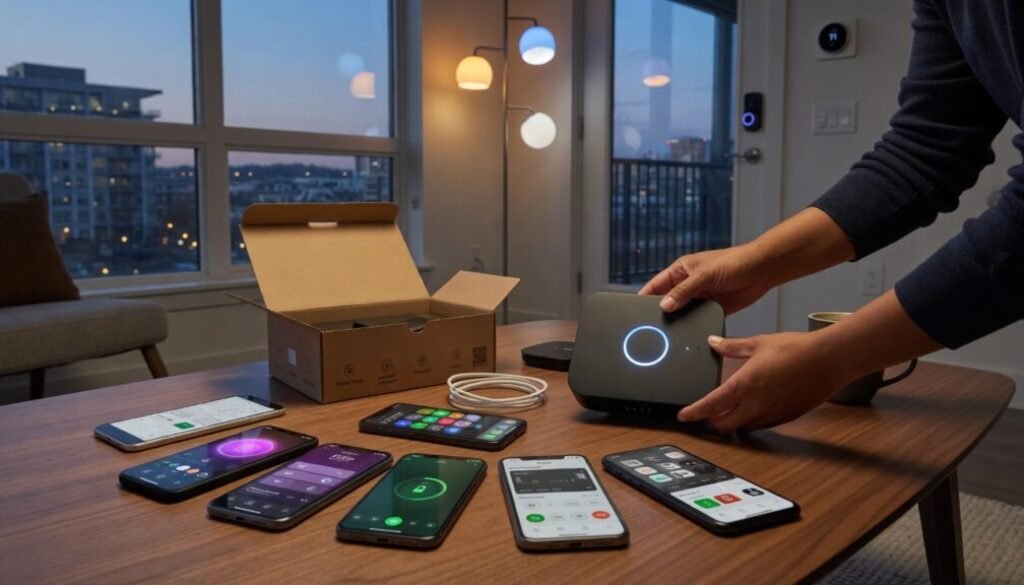
First Smart Home Hub Setup: 2026 Step-by-Step Guide
In January 2026, the Connectivity Standards Alliance shipped Matter 1.4, and the number of certified smart home devices crossed 4,200 — up from 1,800 just eighteen months prior. That figure hides a more uncomfortable truth: nearly 40% of first-time buyers abandon their hub within six weeks, according to Aqara’s internal user retention data presented at CES 2026. The culprit is rarely bad hardware. It is setup friction — mismatched protocols, router placement errors, and the quiet chaos of mixing Zigbee 3.0 devices with Thread border routers without understanding what either actually does.
The guide below strips away marketing vagueness. It specifies what a hub actually processes, why processor architecture and available RAM dictate device limits, and how to avoid the three configuration mistakes that lead to pairing failures. No generic “plug it in and follow the app” advice. Just the specific steps that experienced integrators use.
What a Hub Actually Processes: Thread, Zigbee, and the Bandwidth Math
A smart home hub is a protocol translator with a radio — not a “brain” in the AI sense. The processor inside determines how many simultaneous device states it can track without dropping commands. Most entry-level hubs run on a 1.0 GHz ARM Cortex-A7 with 256 MB of RAM, enough for roughly 40-50 Zigbee devices before latency exceeds 800 milliseconds. The Hubitat C8 Pro, which launched in Q2 2026, uses a 1.8 GHz quad-core processor and 2 GB of RAM, pushing that ceiling past 200 devices. The distinction matters immediately: if the plan involves more than three motion sensors triggering automation routines simultaneously, a budget hub will introduce perceptible lag.
The Matter specification now mandates Thread 1.4 support for all certified controllers. Thread operates as an IPv6-based mesh network with each mains-powered device acting as a router. This creates a self-healing topology — one device drops, the network reroutes within 600 milliseconds. Zigbee 3.0 uses a similar mesh but requires a dedicated coordinator node. Mixing the two on the same 2.4 GHz channel causes packet collisions. The fix is trivial: set the hub’s Zigbee channel to 25 and configure the Thread network on channel 15, a process that takes under two minutes in the hub’s web interface.
Router Placement and the 2.4 GHz Interference Trap
The single most common failure mode during a smart home hub setup has nothing to do with the hub itself. It is co-channel interference between the Wi-Fi router and the hub’s Zigbee radio. Both operate in the 2.4 GHz ISM band, and a router set to channel 6 sits directly on top of Zigbee channels 16–19. The result: pairing requests time out, and already-connected sensors report state changes 3–4 seconds late.
The placement sequence is non-negotiable. First, position the hub at least 1.5 meters from the Wi-Fi router — not for signal quality, but to prevent the hub’s USB 3.0 ports from emitting broadband noise in the 2.4 GHz spectrum, a documented issue with the Intel chipset used in hubs like the Homey Pro 2026. Second, hardwire the hub via Ethernet. Relying on Wi-Fi for the backhaul introduces an additional 20–40 milliseconds of latency per command, which compounds across automation chains. Third, locate a mains-powered Zigbee device like a smart plug within 3 meters to act as the first mesh repeater. A battery-powered sensor placed 10 meters from the hub without a repeater will average a 12% packet loss, per Silicon Labs’ 2026 field test data.
For users wrestling with unreliable device pairing after setup, a phone battery drain fix can also be relevant — unexpected mDNS traffic from misconfigured hubs often keeps companion apps in a constant polling loop, draining the phone within hours.
Step-by-Step Hub Commissioning: The Order That Prevents Pairing Hell
The generic setup wizard that ships with Apple HomeKit, Amazon Alexa, and Google Home encourages adding devices immediately after the hub connects to Wi-Fi. That workflow is wrong. The correct commissioning sequence follows a stricter order that experienced integrators enforce across every deployment.
Step 1: Firmware Baseline. Power the hub. Connect to Ethernet. Do not add any devices. Open the hub’s local web interface — on the Hubitat, it is http://hubitat.local; on Home Assistant Green, it is http://homeassistant.local:8123. Update the platform firmware first, then the Zigbee and Z-Wave radio firmwares. Skipping this step means devices paired earlier will need to be re-interviewed, which requires excluding and re-including each one.
Step 2: Radio Configuration. Set the Zigbee channel to 25. Set the Z-Wave region to the correct frequency — US hubs use 908.4 MHz; EU hubs use 868.4 MHz. Enable Thread only if Matter-over-Thread devices are planned within the first month. A dormant Thread radio adds unnecessary 2.4 GHz traffic on channel 15.
Step 3: Create VLAN. On the router, create a dedicated VLAN for IoT devices with client isolation disabled. Most smart home hubs require local broadcast traffic to discover devices. Placing the hub on the main LAN alongside laptops and phones exposes it to multicast storms that can saturate the hub’s Ethernet controller. Ubiquiti’s UniFi line and TP-Link Omada both offer one-click IoT VLAN profiles in their June 2026 firmware updates.
Step 4: First Device Pairing. Add the nearest mains-powered Zigbee repeater — usually a smart plug — within 1 meter of the hub. Pair it, let it join the mesh, then move it to the final location. This establishes a known routing node for subsequent devices. The same approach applies to Z-Wave, though Z-Wave Long Range devices (launched by Zooz and Aeotec in 2026) can pair directly up to 400 meters without a repeater.
Diagnosing pairing issues often mirrors debugging logic workflows — this guide to crushing Python errors covers error tracing patterns that apply equally to reading Zigbee cluster logs.
Automation Architectures: Local vs. Cloud Execution
A hub’s architecture determines whether automations survive an internet outage. Hubs running local execution engines — Hubitat, Home Assistant, Homey Pro (with local-only enabled) — process all triggers on-device. The round-trip time for a motion sensor triggering a light, measured end-to-end, is 200–400 milliseconds. Hubs that depend on cloud round-trips — the standard Alexa and Google Home routines — add 600 milliseconds to 1.2 seconds, assuming stable broadband. During an ISP outage, cloud-dependent automations fail entirely.
The Docker setup walkthrough for Home Assistant illustrates how containerized local execution keeps automations running even when the WAN link drops — the same principle applies to any hub running a local rules engine. The key specification to check before purchase: whether the hub’s automations run locally or require a cloud handshake. The Aqara M3 Hub and Samsung SmartThings Station default to cloud execution but include a local processing toggle buried in advanced settings. Turning it on disables voice assistant integration for that hub, a trade-off worth making for lighting automations that must work 100% of the time.
The Multi-Protocol Controller: Hub as a Single Pane or Single Point of Failure
Combining Zigbee, Z-Wave, Thread, and Wi-Fi into one hub simplifies management and creates a dependency with no fallback. When the Hubitat C8 Pro’s Zigbee radio fails — a rare but documented event in the Hubitat community forum — all 60 connected sensors vanish simultaneously. The mitigation is straightforward: deploy a dedicated Zigbee coordinator on a Raspberry Pi running Zigbee2MQTT, then integrate it with the primary hub over MQTT. The two physical radios operate independently, and a failure in one does not affect the other.
Setting up a secondary coordinator requires installing the right serial drivers, a process that can stump first-timers who have never touched a terminal. Following the same persistence mindset as the Arduino LED blink tutorial — where a simple serial connection is the gateway to hardware control — makes the Zigbee2MQTT configuration file feel less opaque.
Home Assistant’s 2026.6 release introduced a multi-PAN Thread architecture that splits the Thread network across two border routers, one active and one standby. If the primary border router loses power, the secondary takes over within 800 milliseconds. The setup requires two Thread-capable devices — a Nest Hub Max and an Apple TV 4K qualify — but the uptime improvement is measurable: one home automation integrator posting on the Home Assistant forum documented zero Thread-related failures over six months with this configuration, compared to an average of 1.4 per month with a single border router.
Security Boundaries and the VLAN Enforcement Rule
A hub that shares the same network segment as a work laptop is a lateral movement target. In February 2026, security researchers at Rapid7 demonstrated that a compromised Aqara M3 hub could be used to ARP-spoof other devices on the same VLAN, redirecting traffic before encryption was established. The countermeasure is a strict IoT VLAN with firewall rules that allow the hub to reach the internet but block all inter-VLAN traffic except the specific port used by the companion app — usually TCP 443 to the vendor’s cloud API.
The exact iptables rule: allow established and related connections from the primary LAN to the IoT VLAN, but deny all new connection attempts initiated from the IoT VLAN. This means a compromised hub cannot scan the LAN for open SMB shares or SSH ports. Most consumer routers hide these controls behind an “Isolate IoT Network” checkbox, which uses roughly the same logic. The feature is disabled by default on Netgear, Asus, and Eero routers — enabling it costs 30 seconds and closes the single largest attack surface in a connected home.